Shear walls are used for lateral design of wind or seismic loading.
How to Model Shear Walls in LAVA

To draw a shear wall, click ‘Shear W’ on toolbar to start drawing shear walls in the model space. There is also a keyboard shortcut ‘s’ to activate this drawing shear wall command. Click two points in the model space to define the length of the wall.
Shear wall elements can be modeled one at any time. To get the correct loads properly applied to shear wall elements, the model must have diaphragms and shear lines drawn.
Navigating the Shear Wall Dialog
After drawing a shear wall in the model space, you can double-click on the shear wall to open the Shear Wall Design dialog.
.png "image(199).png")
.png "image(200).png")
: Click ‘OK’ button to save any edit/input and close the window.
.png "image(201).png")
Click on the top dropdown to quickly navigate all shear wall element at this level. The left/right arrows allow you to also move from the previous/next shear wall element.
.png "image(202).png") : Click ‘Apply Changes to Layout’ button to save any edit/input without closing the window.
: Click ‘Apply Changes to Layout’ button to save any edit/input without closing the window.
Shear Wall Definition Tab
.png "image(187).png")
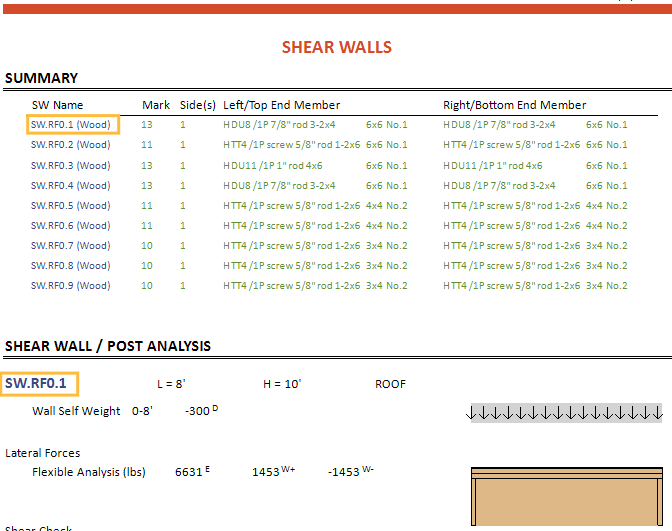
Wall Label: User can edit the name of the shear wall, that is displayed on the navigation list on the left, and on the calculation report.
Wall Label is shown in the left side of the screen:
.png "image(188).png")
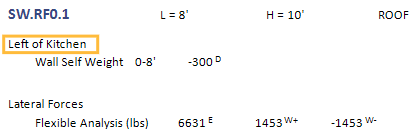
Wall Label is shown in the Report:
Level: Displays the level of the shear wall. This information cannot be altered.
ID: Here displays the internal ID of the shear wall in program. This will not be displayed in calculation report.
Location: This is displayed and can be edited. The coordinates are of the origin of the wall or the left end of shear wall in the model space.
Length: User can edit the length of the shear wall.
Level Height, Plate Height: These values’ displays the level height and plate height of this shear wall. These values are defined under ‘Building Definition’ - ‘Elevation’ tab. Level height refers to the height of sheathing, plate height refers to the height of top plates.
Span Dir: This displays the span of shear wall in either direction.
Location Type: Choose between interior or exterior to assign location for the shear wall. The program will find the outer perimeter of the building after the diaphgram is modeled and solution is run.
Sheathing Side (Plan View): User to choose between Left/Top Side or Right/Bottom Side to display shear panel in the model space.
.png "image(190).png")
.png "image(191).png")
Wall Weight: Choose between pre-defined wall weights: exterior, interior or custom wall weight.
Annotation: User to input descriptive notes that will be displayed on the calculation report.
For example, you can annotate “Left of Kitchen” and it will show up in the Report with this note.
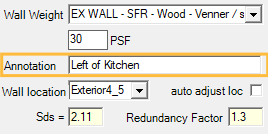
Wall location: User to choose between pre-defined wall location: Exterior4, Exterior4_5, Exterior5, and Interior.
auto adjust loc: If checked, LAVA will determine wall location and weight automatically.
Sds: Displays Sds that was input in ‘Project Definition’ - ‘Criteria’ - ‘Seismic’ tab.
Redundancy Factor: Displays redundance factor that was determined in ‘Project Definition’ - ‘Criteria’ - ‘Seismic’ tab. Note this can be turned off in the Design Procedure- Seismic tab- “Use Redundancy Factor”.
Apply over strength factor to drag: If checked, LAVA will increase drag force with over strength factor that was input in ‘Project Definition’ - ‘Criteria’ - ‘Seismic’ tab. This is uncommon.
Shear Wall Basic Loads Tab
This screen gives a graphical description of the loads on the shear wall.
.png "image(195).png")
Summary: Displays all the loads applying to the shear wall. Choose the item to display graphically. This helps user to review and examine load condition.
After selecting the load source (SL- Shear Line, PL- Plate) select the Load Category to show the loads (D- Dead Load, L- Live Load, Lr- Live Roof Load, Sn- Snow Load, W(+)- Wind Load Positive, W(-)- Wind Load Negative. If the load category has no options and displays grey, that means there are no loads in that load category.
Select “All” to show all the sources of load together. Select “Reactions” to show the Shear Wall reactions.
.png "image(196).png")
Shear Wall Modify Loads Tab
In addition to automatic loading by LAVA, user can manually add loads under ‘Modify Loads’ tab, including vertical point load (P), vertical distributed load (w), lateral point load (←P, or →P). Click ‘OK’ after adding/editing each load. Use ‘Delete’ key on keyboard to remove loads.
.png "image(197).png")
Shear Wall Sizing
The sizing is used to design the Wall, Hold Down and Supports.
.png "image(198).png")
Load Combn: Choose ‘-Compare All-’ to calculate shear wall with all available load combinations, and the worst-case scenario will be displayed at sub window on the right. User can also choose specific load combination from the dropdown menu to calculate the shear wall.
.png "image(203).png") : User can click this button to calculate the selected shear wall without running full model analyze.
: User can click this button to calculate the selected shear wall without running full model analyze.
Sizing Wall Tab
.png "image(205).png")
Wall Type: Select the options; Wood, Simpson or Hardy.
This allows you select the database values based on the type of wall the program will design.
Shear Wall Height and Applied Load Height are automatically calculated and can be overwritten by checking the checkbox. These heights come from the Elevation page.
Allowable Adjustment Factors: This is a “Fudge” factor that allows you to increase or decrease the capacity of the wall.
Auto Adjust Size: When this is checked, the size will automatically be sized until it meets the demand loads and the deflection requirements.
Wall Size: This shows the size recommended and is not editable. However if you unselect Auto Adjust Size, you can manually select the size.
Note: The size will not be automatically checked unless you click ““ button or “Apply Changes to Layout”.
Copy this Wall size to all existing shear walls: This gives you an option to make the changes on this floor level and modify this floor or all floors.
Calc Stiffness (E) and (W): the program will automatically calculate the stiffness of the wall.. The "E" and "W" designate Earthquake and Wind. You can also choose to override the stiffness manually.
Calculation result is displayed at the sub window on the right.
Sizing Hold Down Tab
.png "image(206).png")
HD Type: At the first dropdown menu, user can choose wood for conventional tension tie or hold down, or ATS for tie-down system; at the second dropdown menu, user can assign installation condition, including floor framing level or foundation.
copy hold down sizes to all existing shear wall: User can assign the same type of HD hardware to all existing shear walls at this level or at all levels.
Hd0 (Left/Top), Hd1 (Right/Bottom): User to choose installation condition.
.png)
.png)
Edge Offset Dist: User to assign offset distance of tension/compression from shear wall end due to hold down installation.
AAF: Allowable adjustment factor. User to assign a factor to reduce tension capacity of hardware per local jurisdiction’s requirement. For example, Los Angeles County requires 25% reduction of conventional hold down capacity.
Auto Adjust Size: When checked, LAVA automatically select hold down size per the loading requirement. User can override by uncheck this option, and the dropdown menu will be available to user.
Hold Down Size: When ‘Auto Adjust Size’ is unchecked, the dropdown menu is available to user to override hold down selected by LAVA.
.png "image(207).png")
Size Recommended: Here displays the hold down selected by LAVA per the loading requirement.
Calculation result is displayed at the sub window on the bottom.
Sizing Support Tab
.png "image(208).png")
Support 0 (or Support 1): User to choose if they would like LAVA to design shear wall end post (tension/compression member) or not.
Multi Post: User can choose multi-stud or multi-post configuration at shear wall end.
Unbraced length: User to assign unbraced length of post. The default value is consistent with ‘Building Definition’ - ‘Elevations’ tab.
Unbraced Axis: User to choose the unbraced axis for the post. For typical shear wall, the unbraced axis should be perpendicular to the shear panel axis.
Post Type: User to choose the species, grade, depth, and AAF (Allowable adjustment factor) of post. Lumber for studs/posts up to 4x, and Timber for posts larger than 4x.
Wall Plate Bearing: User to choose if they want to check sill plate bearing or not.
Post Sizes: User to choose from available sizes for calculation. If user chooses ‘-All-’, LAVA will automatically assign the recommended size.
Size Recommendation: Here displays the post size selected by LAVA per the loading requirement. If the size user assigns does not work, or none of the available size works, it will display ‘Failed’. User should choose a different post specie or grade.
Calculation result and applicable duration factor Cd are displayed at the sub window on the bottom.
Shear Wall Adjustment Factors
The Adjustment factors are defined for the entire model in the ‘Building Definition’ - ‘Adjustment Factors’ tab. The Adjustment factors can be adjusted or excluded in the individual shear walls on this tab. Click on the factor from the dropdown list and the database of factors will show. These can be altered here for this wall only. Or uncheck the factors on the right of dropdown menu to exclude the factor for this wall.
.png "image(210).png")
Shear Wall Load Summary
Review the loading types and values in the background calculations. This is helpful for user to verify calculation for loading or results. The values in the summary are all unfactored. ‘Z’ represents vertical forces, and X (or Y) represents lateral forces.
.png "image(211).png")
There are three blocks of data.
The first block is self weight of wall.
The second block is the loading applied to the shear wall.
The third block is the reaction of the shear wall.
Shear Wall Links To Elements
This displays the elements that are subject to the reactions of the shear wall. User can review the load path of shear wall.
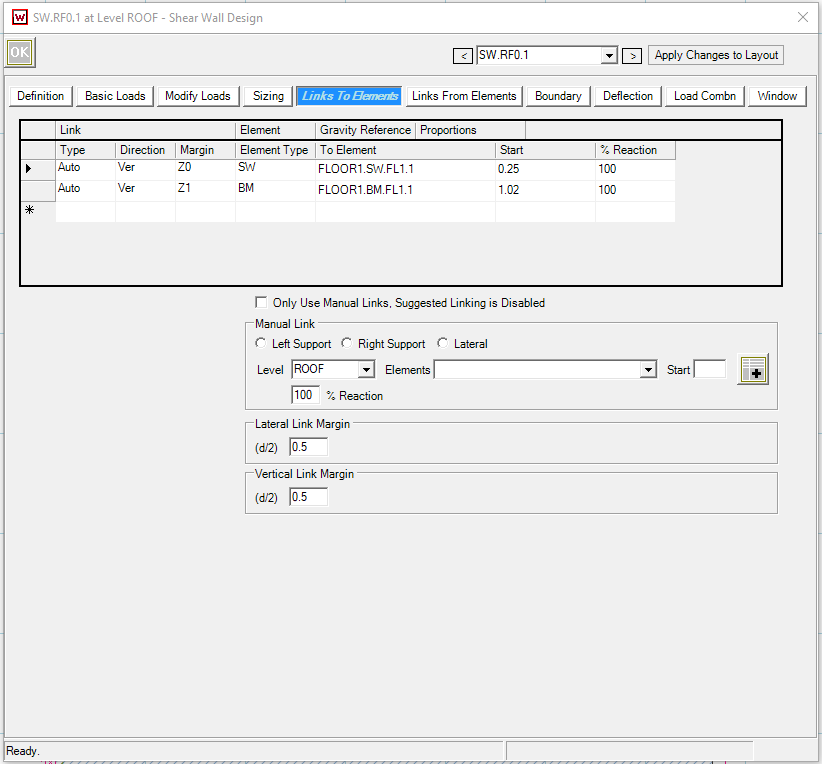
Only Use Manual Links, Suggested Linking is Disabled: LAVA automatically traces the load paths basing on graphic representation in model. If user wishes to turn off the automatic tracing, and only relies on manual tracing, they can check this option.
Manual Link: User can manually load the ‘Left Support’, ‘Right Support’, or ‘Lateral’ reaction of the shear wall to an existing structural element.
.png "image(214).png")
Lateral Link Margin, Vertical Link Margin: User to assign the margin in graphic accuracy for LAVA to caption the load. Please see the overlay view of an upper level shear wall and a lower level beam in the screenshot below, assume the user placed the lower level beam about 5” to the right side of the upper level shear wall:
.png "image(220).png")
If user sets the Vertical Link Margin to be 0.01’, the right reaction of the shear wall will not be automatically included into the beam calculation by LAVA. If we set the Vertical Link Margin to be 0.5’,.png "image(219).png") , the right reaction of the shear wall will be automatically included into the beam design by LAVA, since 5” is within the limit of 0.5’.
, the right reaction of the shear wall will be automatically included into the beam design by LAVA, since 5” is within the limit of 0.5’.
Shear Wall Links From Elements
This displays the elements that apply their reactions to this shear wall, including both automatic link by LAVA, and manual link by the user.
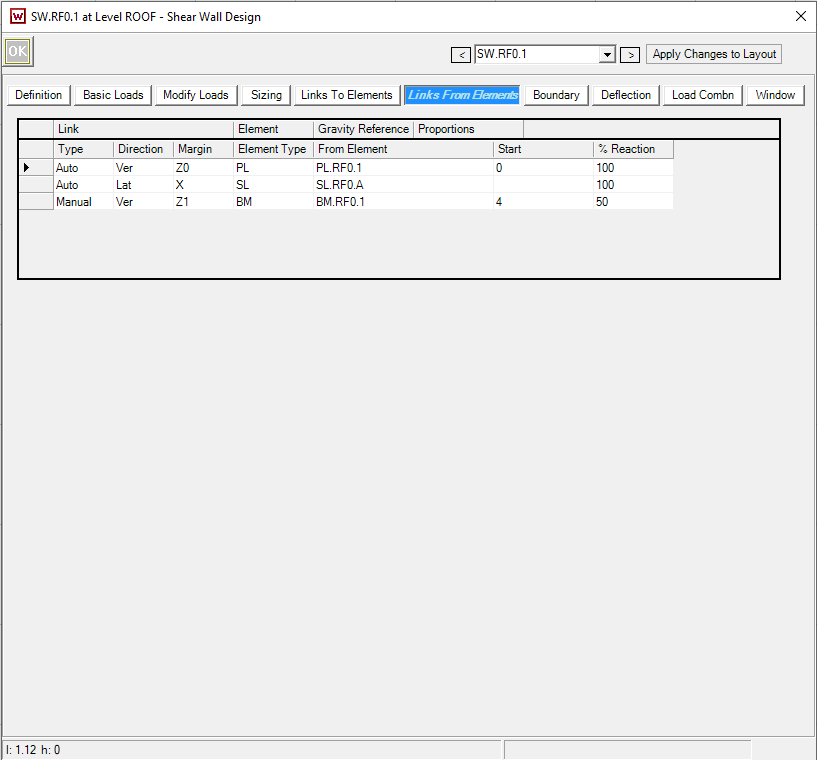
Shear Wall Boundary
.png "image(222).png")
Allow Loads from Other Levels: User can choose if they allow loads from other level being applied to this shear wall. It is uncommon to uncheck these items.
Allow Loads from Same Level: User can choose if they allow loads from the same level being applied to this shear wall. It is uncommon to uncheck these items.
Isolate Reactions to Other Level: User can choose if they allow reactions of this shear wall applying to other structural elements. User can check these items if they are certain of the load path, and do not wish to accidentally over stress the structural elements on the lower level. It is uncommon to check these items.
Shear Wall Deflection
.png "image(223).png")
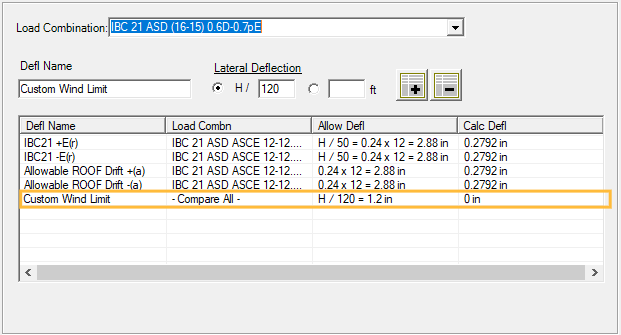
Here displays the deflection limit on shear wall required by code. User can add their own limit by selecting a certain load combination, add a name, input the limit, and press .png "image(224).png") .
.
Shear Wall Load Combn
.png "image(226).png")
Shear Wall / Hold Downs:
If ‘Manual Include/Exclude Load Combinations’ is left unchecked, LAVA will not exclude any load combinations. By checking ‘Manual Include/Exclude Load Combinations’, user can manually exclude specific load combinations when LAVA calculates the shear wall and hold downs, by checking specific load combinations under ‘Exclude Regular Load Combinations’. It is uncommon to make changes here.
Supports:
If ‘Manual Include/Exclude Load Combinations’ is left unchecked, LAVA will not exclude any load combinations, except snow load combination. By checking ‘Manual Include/Exclude Load Combinations’, user can manually exclude specific load combinations when LAVA calculates the shear wall end posts, by checking specific load combinations under ‘Exclude Regular Load Combinations’. The ‘Special Load Combinations’ are load combinations with special seismic load including overstrength Omega factor (Em). User can exclude specific special seismic load combinations by unchecking specific special seismic load combinations.
Shear Wall Window
User can input window dimension so LAVA can perform Perforated or Transfer-around-opening analysis. The program uses Segmented method to design the walls if you do not have openings.
.png "image(228).png")
Window Location:
I - Distance of left side of window to the left side of shear wall end post.
h - Distance of top side of window to the point of lateral load (sheathing of this level), as seen in the diagram below.
.png)
Please visit Building Definition - Elevation tab to define the distance between top of sheathing and top of plates.
.png)
Height - Window height.
Width - Window width.
Therefore, for a 6’ tall x 3’ wide window, located 2.5’ from left side of shear wall, and 4’ below sheathing, the input should look like the screenshot below.
.png "image(229).png")
Clear Window: User can quickly remove window by clicking this button.
Enable shear adjustment: If checked, LAVA will perform shear wall analysis with opening. This item is checked by default.
Auto select method: if checked, LAVA will perform the analysis that returns the most economic result between ‘Perforated’ method and ‘Continuity (transfer around opening)’ method. User can uncheck this item, and select a specific method between the two.
Ignore panel above opening (continuity only): User can check this item when using ‘Continuity’ method. This is allowed in certain scenario. This item is unchecked by default.
After analyzing, the ‘Window’ tab will be updated with analysis result.
.png "image(227).png")
Capabilities & Limitations
LAVA will design, for strength and drift, a shear wall with a single opening either centered or offset. The stiffness of the wall will automatically be incorporated in the computations for center of rigidity for both wind and seismic analyses. Gravity loads above the wall are automatically taken into consideration just as they are for traditional walls. The program will provide the following results.
• Maximum shear load and sheathing sizing.
• Shear sheathing capacity reduction based on aspect ratio of the full wall.
• Shear sheathing capacity reduction based on aspect ratio of piers. This reduction is the design intent of SPDWS 2021 4.3.3.3.
• Drag loads for straps both above and below the open.
• Hold-down forces and sizing
• Collector post sizing at the ends of the shear wall.
• Drift at strength level seismic load and at amplified seismic load.
A comparison of LAVA results to design examples will find shear values match with reasonable accuracy. Drift results will differ. To calculate drift, LAVA utilizes the SPDWS three-part equation as opposed to the four-part equation. This choice was made to maintain compatibility with lateral systems for which only three part data are available. LAVA analyses drift contribution of the bending components of the equations (first and third terms) based on the overall height and width of the wall consistent with traditional methods of analysis. Drift due to the shear component of the equation (second term) is based on a summation of the deflections across the full lengths of the wall and the higher shear induced deflections at the reduced section of the wall.
.png)
Among the items LAVA is not checking are the following which are left to the user for verification.
• Minimum pier dimension of 24 inches. SPDWS 2021 4.3.2.2.2.
• Shear wall height of 20 feet or less. SPDWS 2021 4.3.2.2.8.
• Minimum head and sill dimension of 12 inches. APA Technical Note T555C -2024.
• Strap selection and extension across the top and bottom of the opening.
LAVA currently does not design walls with more than one opening. A single opening encompassing multiple openings may be a reasonable assumption for multiple opening conditions.